

Open Work Orders
- Select Work Orders from the main navigation.
- Review your Work Orders on the dashboard.
- Select an existing Work Order to open its details, or select + New Work Order to begin a new one.
Understand the Work Orders Dashboard
The dashboard displays Work Orders in four columns, based on their current stage: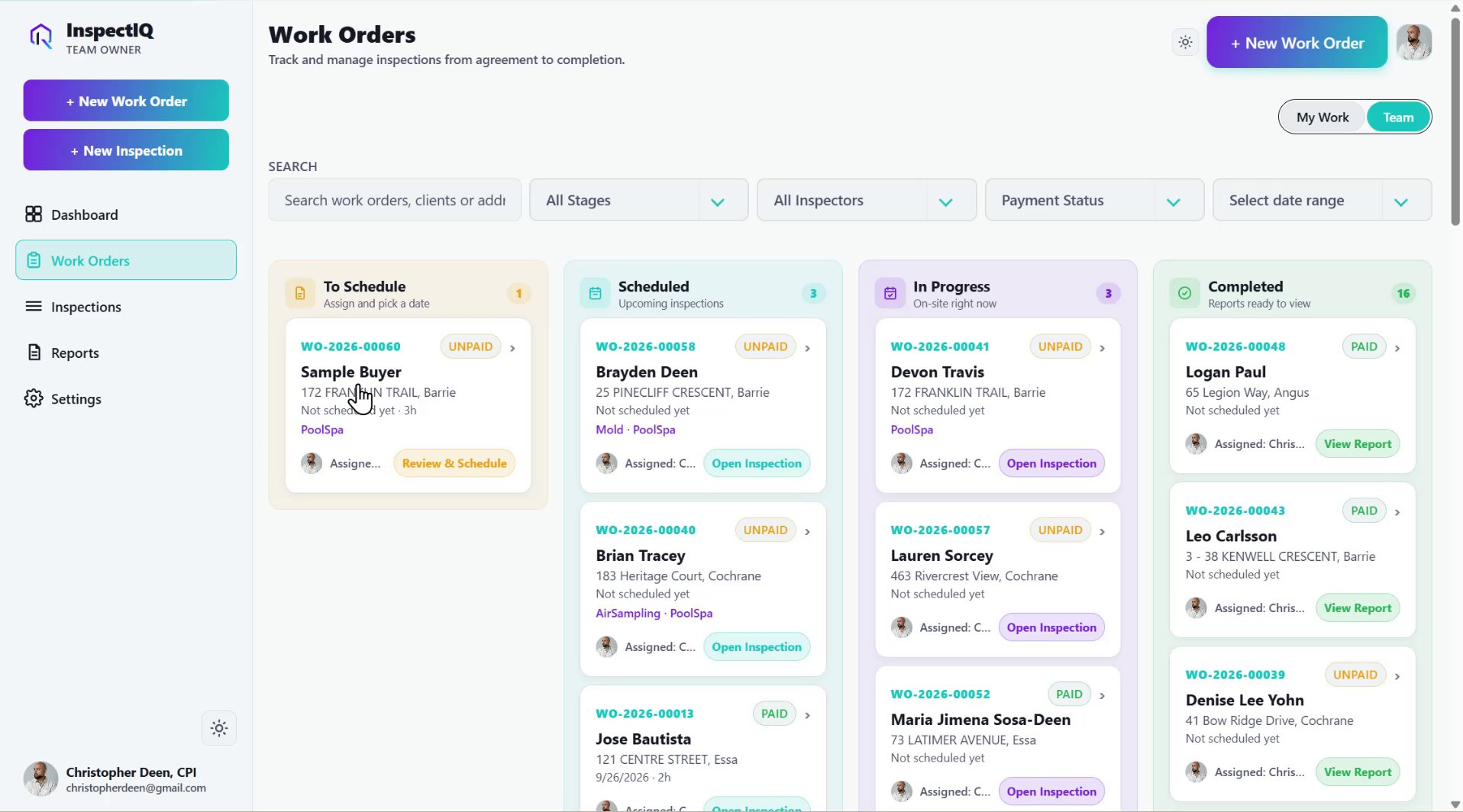
Find a Work Order
Use the controls above the dashboard to narrow the results:- Search — Find a Work Order using identifying details.
- All Stages — Show Work Orders in a selected stage.
- All Inspectors — Filter by assigned inspector.
- Payment Status — Filter by payment status.
- Select Date Range — Narrow the results by date.
Open and Manage a Work Order
- Find the Work Order on the dashboard.
- Select its card to open the detail page.
- Review the property, client, pricing, appointment, and agreement information.
- Use the actions available for its current stage.
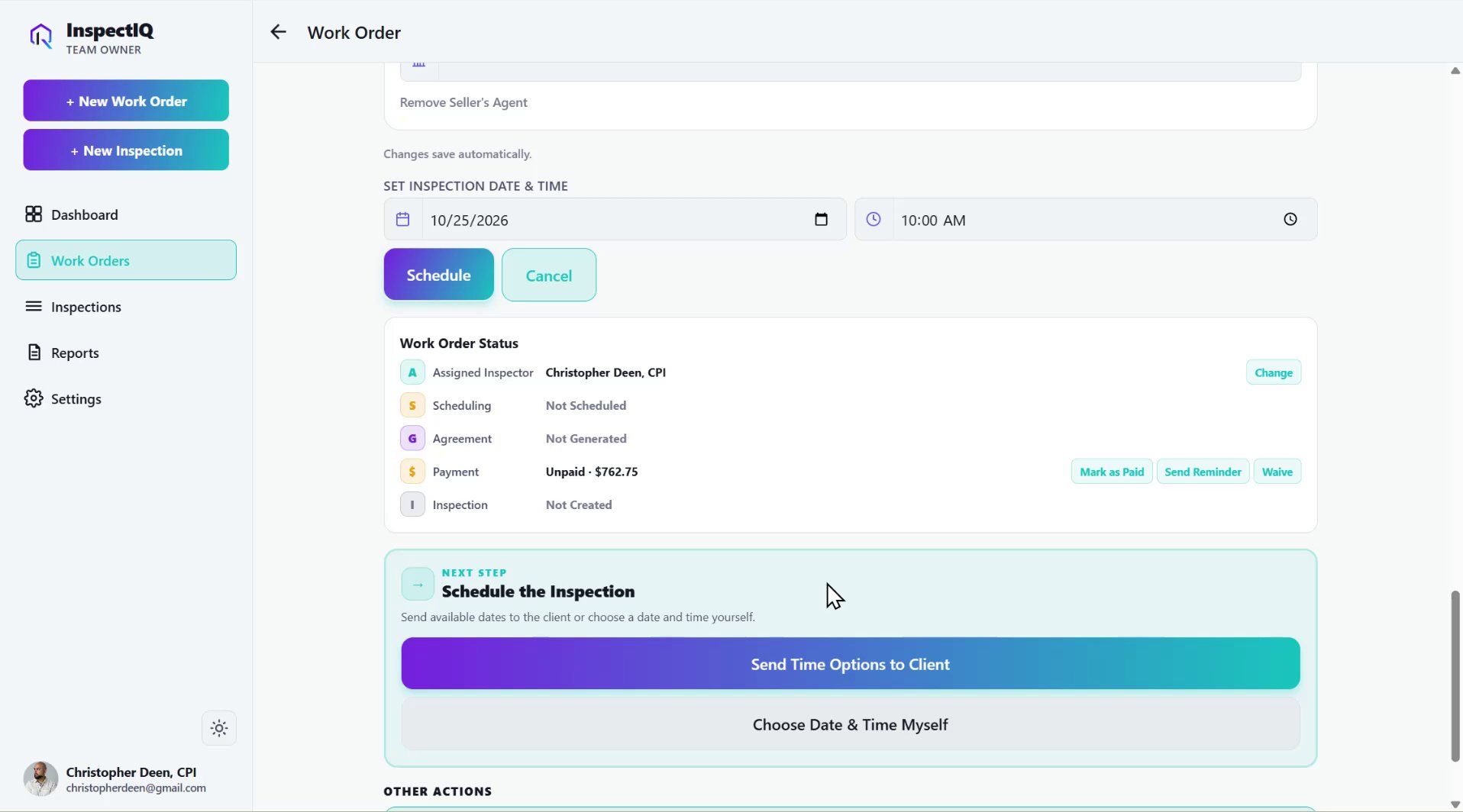
Work Order stages and agreement signature statuses are separate. For example, a Work Order may be scheduled while its agreement is still awaiting a client signature.
Create a New Work Order
Select + New Work Order to enter the property, inspection services, fees, client details, and any applicable agent information. After creation, continue through the steps shown on the Work Order detail page: assign an inspector if required, schedule the appointment, prepare the agreement, and proceed to the inspection.What Comes Next?
Once a Work Order is created, you can choose how to schedule it:- Send Date & Time Options — Offer appointments for the client to select.
- Choose Date & Time Myself — Set the appointment directly.